How to export every Apple Pay transaction from your iPhone (Apple Card or not)
The short answer: Apple Card gets a monthly CSV. Every other Apple Pay charge — Visa, Amex, debit, business — has no export at all, and Wallet’s merchant names occasionally come from Apple Maps and tag the wrong store. A one-time iOS Shortcuts automation captures every Apple Pay tap on any card in real time and sends merchant, amount, and date to your tracker. Two-minute setup.
Expensa for iPhone Track spending automatically Receipt scanning, budgets, Apple Pay sync — free on the App Store. Get the appWhat Apple actually exports today
A quick honest tally:
- Apple Card → CSV: yes, but limited. Wallet → Apple Card → ”…” menu → Statements → Download Transactions. Date, amount, merchant, category. But only Apple Card, and only after the statement closes — the most recent ~30 days are unavailable.
- Every other Apple Pay charge: no export. Visa, Amex, debit, business cards in Wallet tap through Apple Pay the same way, but the transactions live entirely on your phone with no downloadable file. Apple’s official answer is “get the statement from your bank.”
- The merchant-name problem. Wallet sometimes shows a cleaner merchant name than the raw bank string — and sometimes worse, because the name is pulled from Apple Maps and Maps occasionally tags the next-door business. A lot of “what is this charge” support threads are exactly this.
So in practice: one card gets a delayed monthly CSV, every other card gets nothing, merchant names can’t always be trusted. The workaround is built into iOS.
The Wallet trigger most people don’t know about
Since 2021, iOS Shortcuts has had a personal automation trigger called “When I tap a Wallet Card or Pass”. It fires every time Apple Pay completes a payment, on any card you select, and hands the Shortcut three values: merchant name, amount, and date.
This is a real iOS API — not a scraper. The automation runs locally. No bank credentials, no third party. You can route those three fields into anything Shortcuts supports — Google Sheets, Notion, a webhook, or an expense tracker that exposes a Shortcuts action.
If you use Expensa, the action is called “Tap to Pay Automation” and it accepts those three fields directly. The walkthrough below uses Expensa; the same pattern works with any Shortcuts-aware tracker.
On merchant names: the Shortcut receives whatever Wallet has at the moment of the tap, which means the cleaner name when it’s right, and the Apple-Maps name when it’s wrong. No public iOS API exposes the raw payment-network merchant string, so no app can sidestep this fully. Expensa lets you rename a merchant once and applies that rename to every future transaction from the same source.
What you’ll need
- iPhone with Apple Pay configured
- Shortcuts app (built into iOS)
- A destination — for this walkthrough, Expensa
Step 1: Open the Shortcuts app
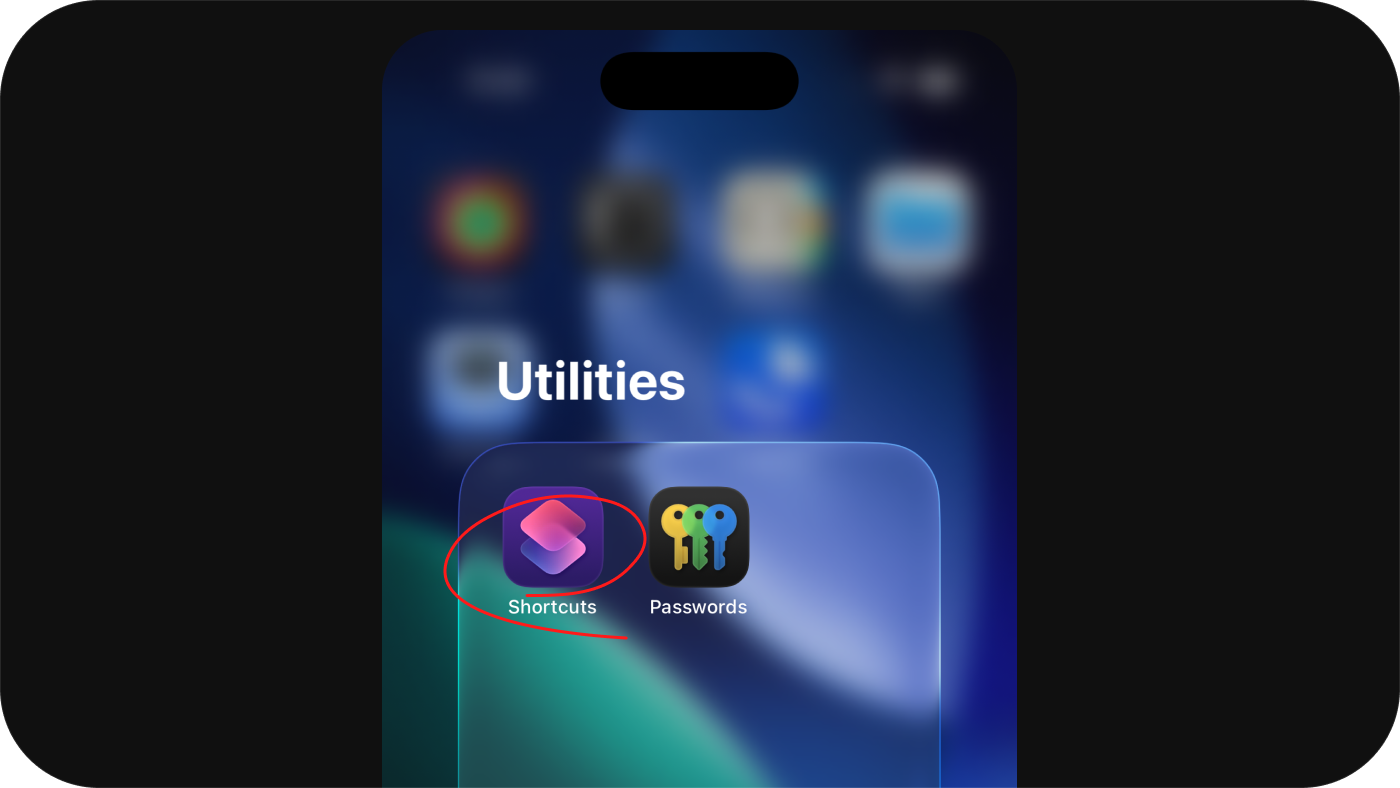
Find the Shortcuts app on your iPhone and open it. It comes pre-installed on every iPhone running iOS 13 or later — if you’ve never opened it, it’s probably in the Utilities folder.
Step 2: Go to the Automation tab and tap “New Automation”
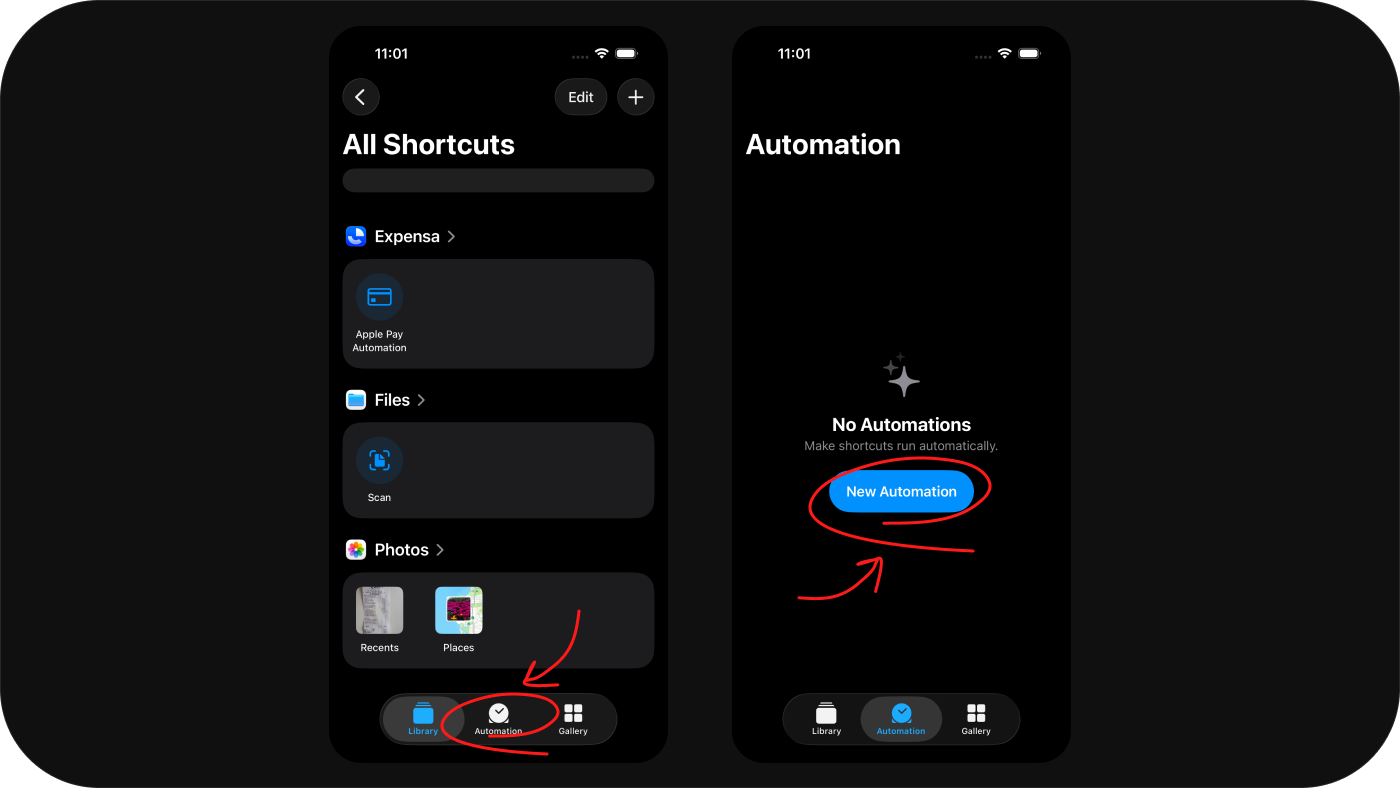
At the bottom of the screen, tap the Automation tab. Then tap the New Automation button.
Step 3: Select “Wallet”
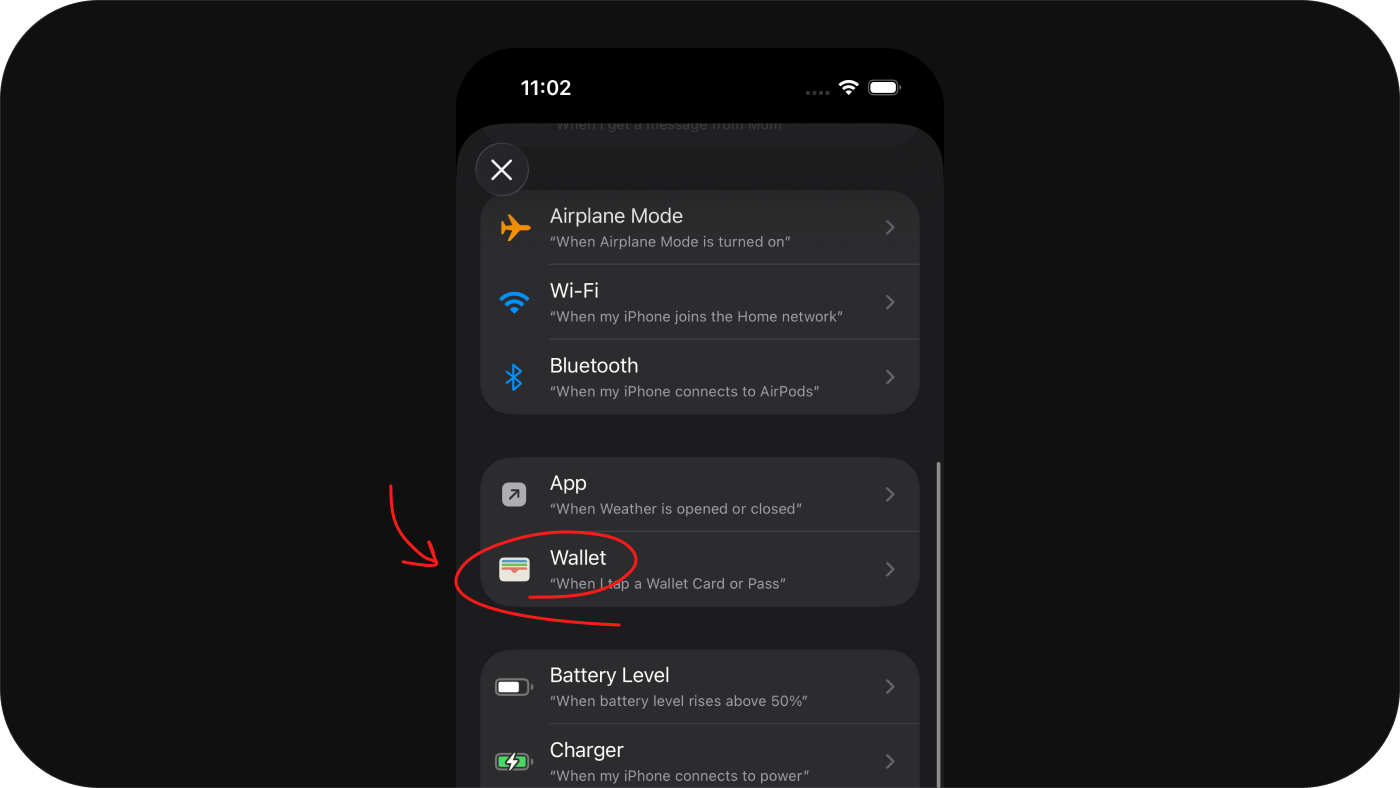
Scroll down to find Wallet — specifically “When I tap a Wallet Card or Pass”. This is the trigger that fires every time you use Apple Pay, and it’s why no bank connection is needed: iOS itself tells the Shortcut when a payment happened.
Step 4: Select your cards and set to Run Immediately
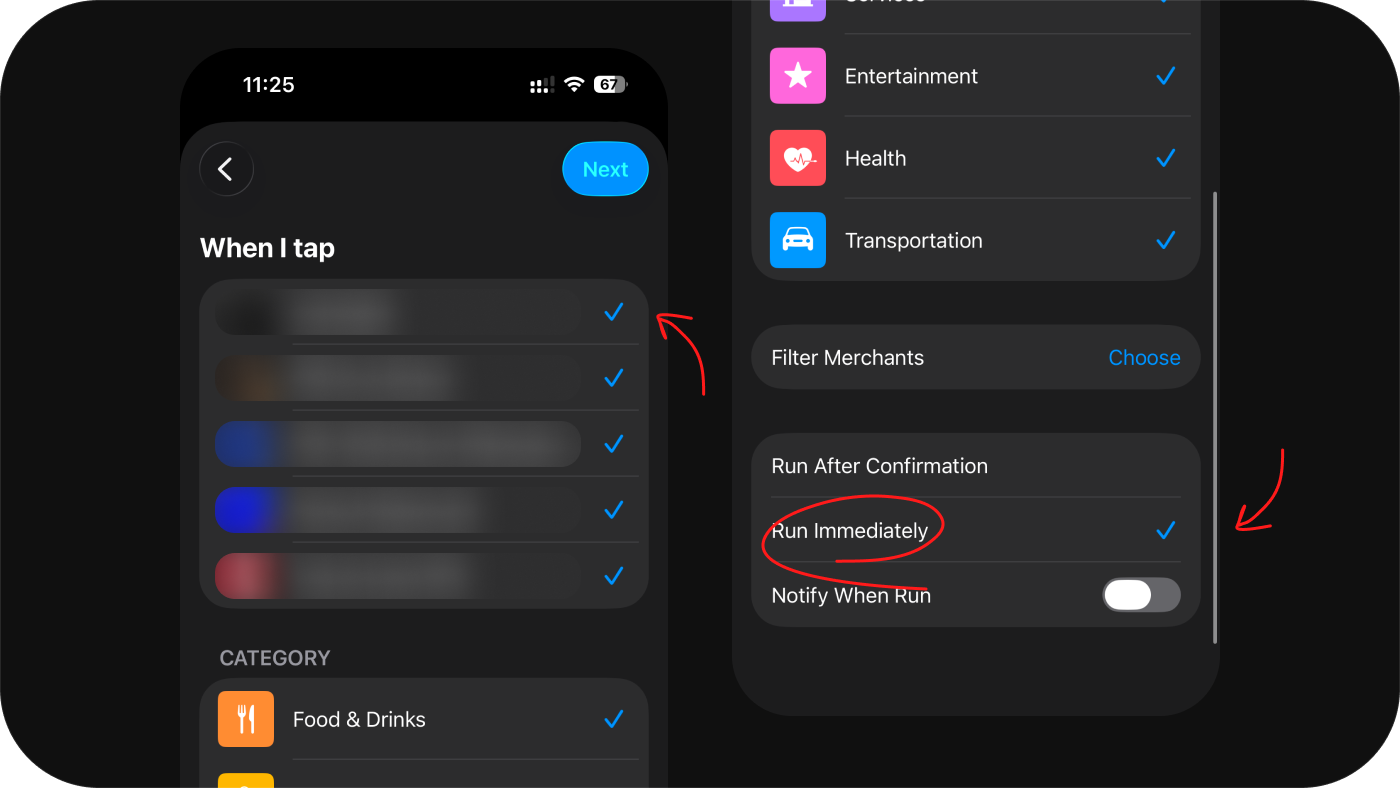
Pick the cards you want the automation to work with. Then change the run mode to Run Immediately — if it’s set to “Run After Confirmation”, Shortcuts will ask for approval every single time you pay, which defeats the whole point.
Step 5: Tap “Create New Shortcut”
When prompted to choose what the automation does, tap Create New Shortcut.
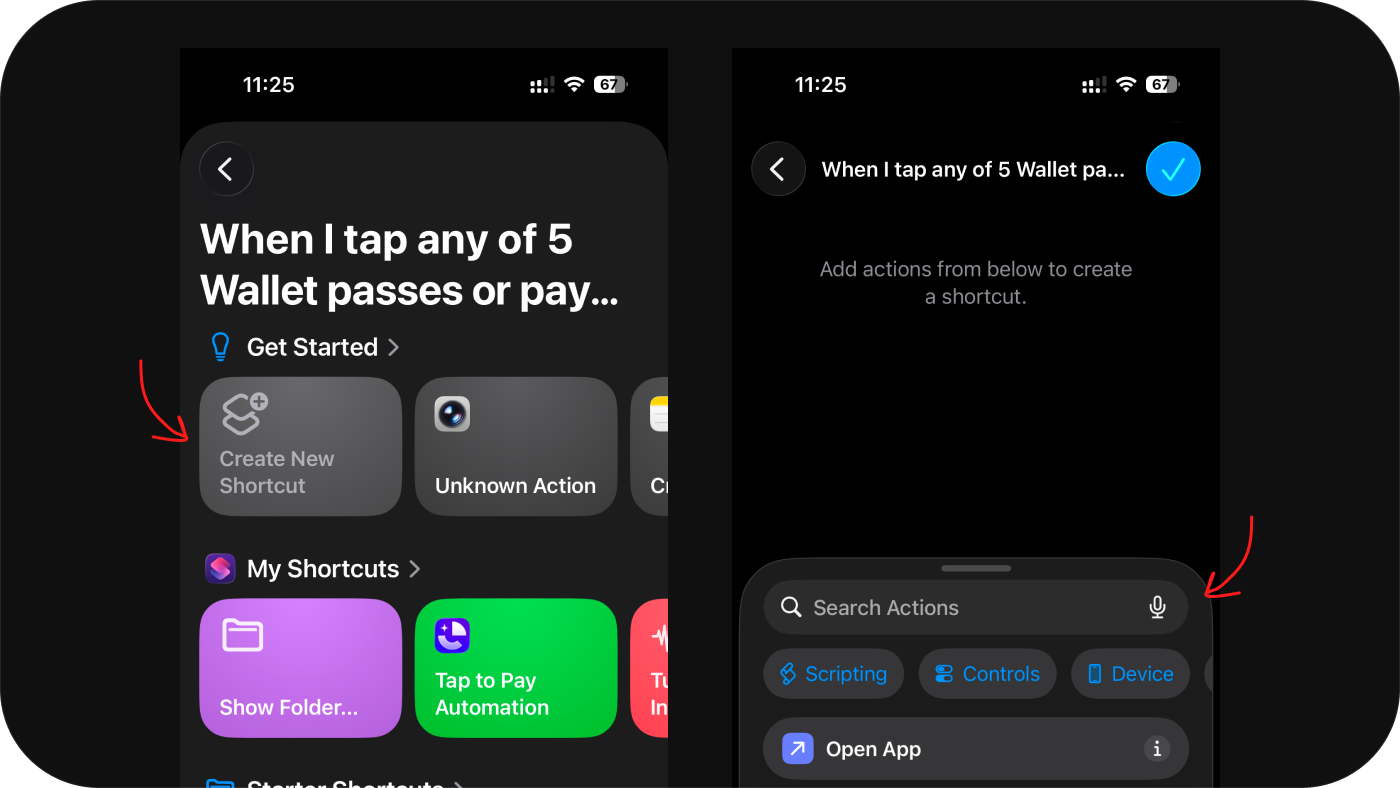
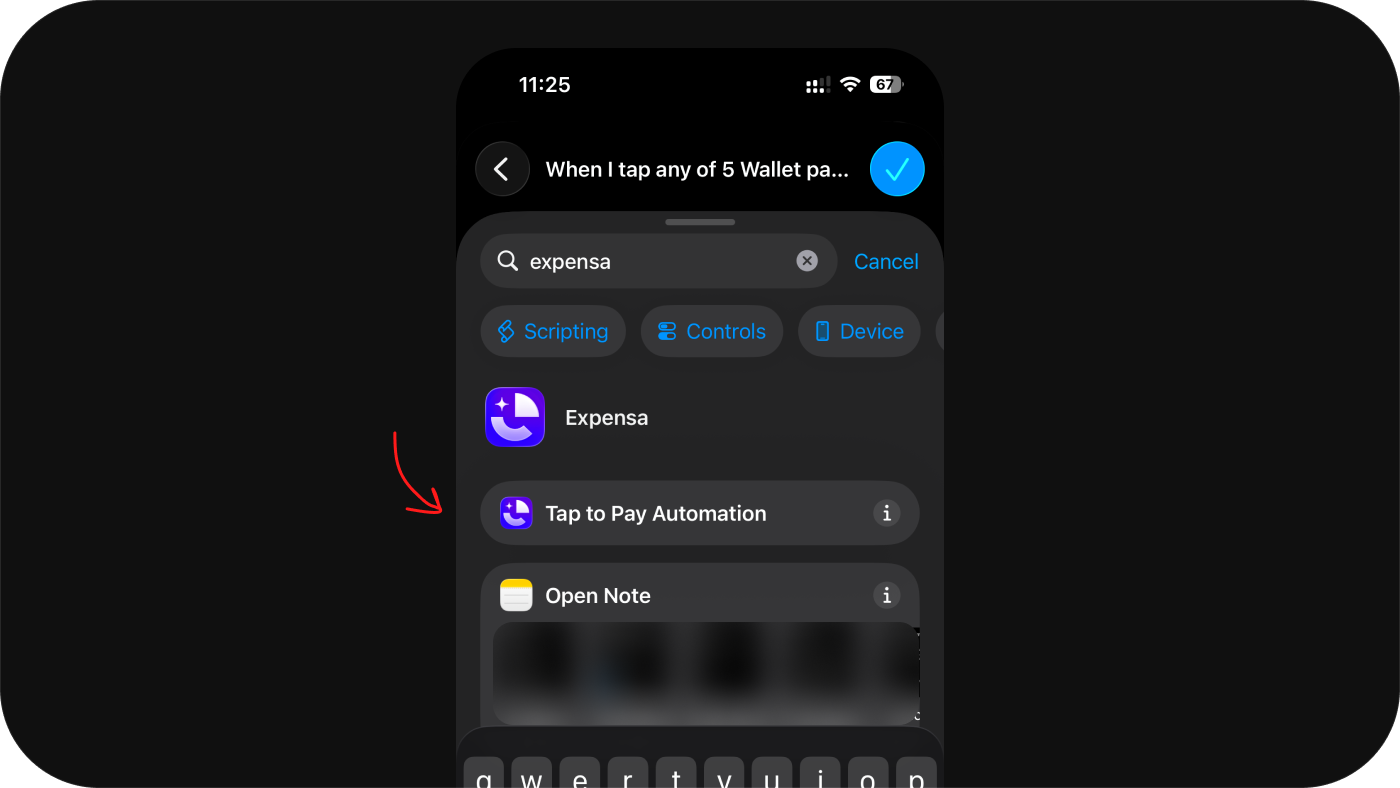
Step 6: Add the action that receives the transaction
In the search bar, type Expensa or Tap to Pay Automation and select it. (For other destinations, search the app — “Append Row” for Sheets, “Add to Database” for Notion, “Get Contents of URL” for a webhook.)
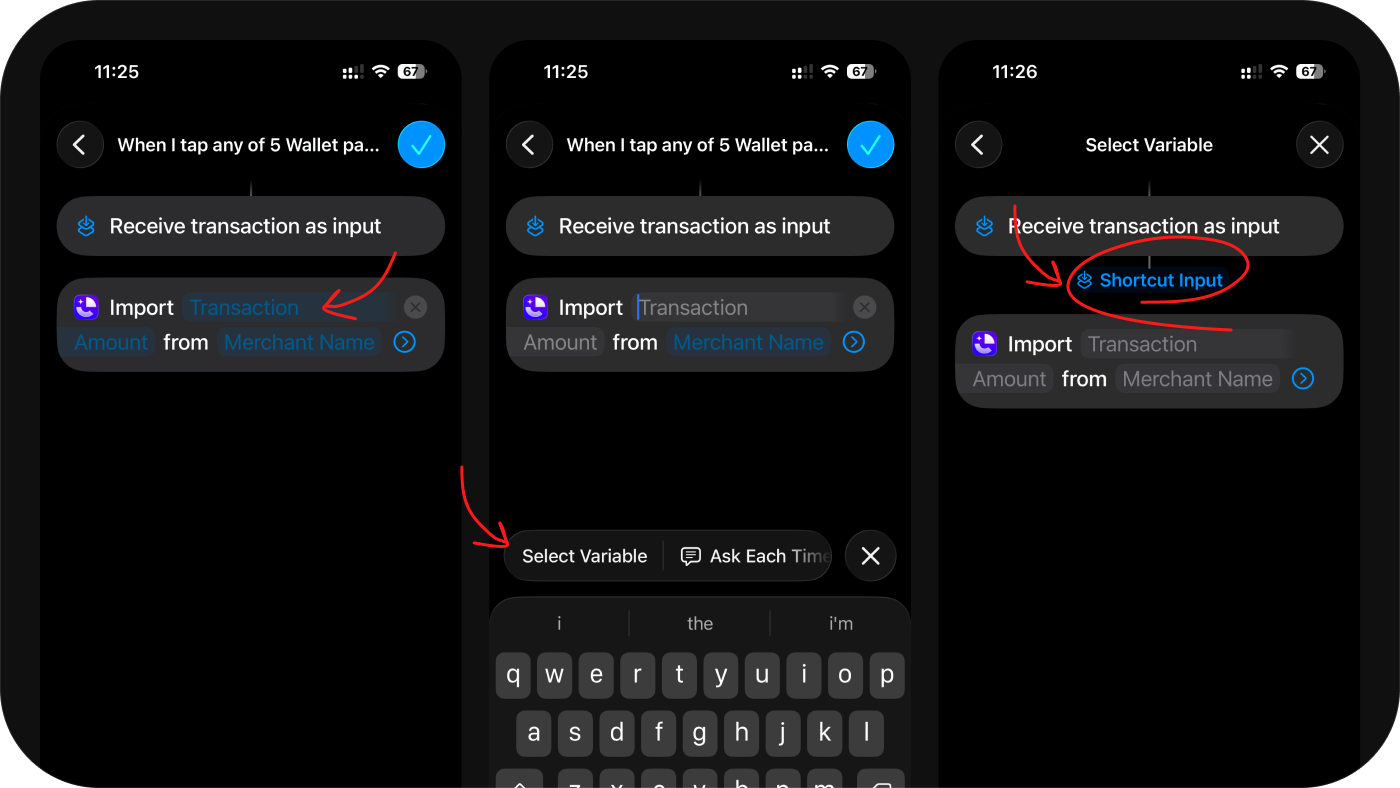
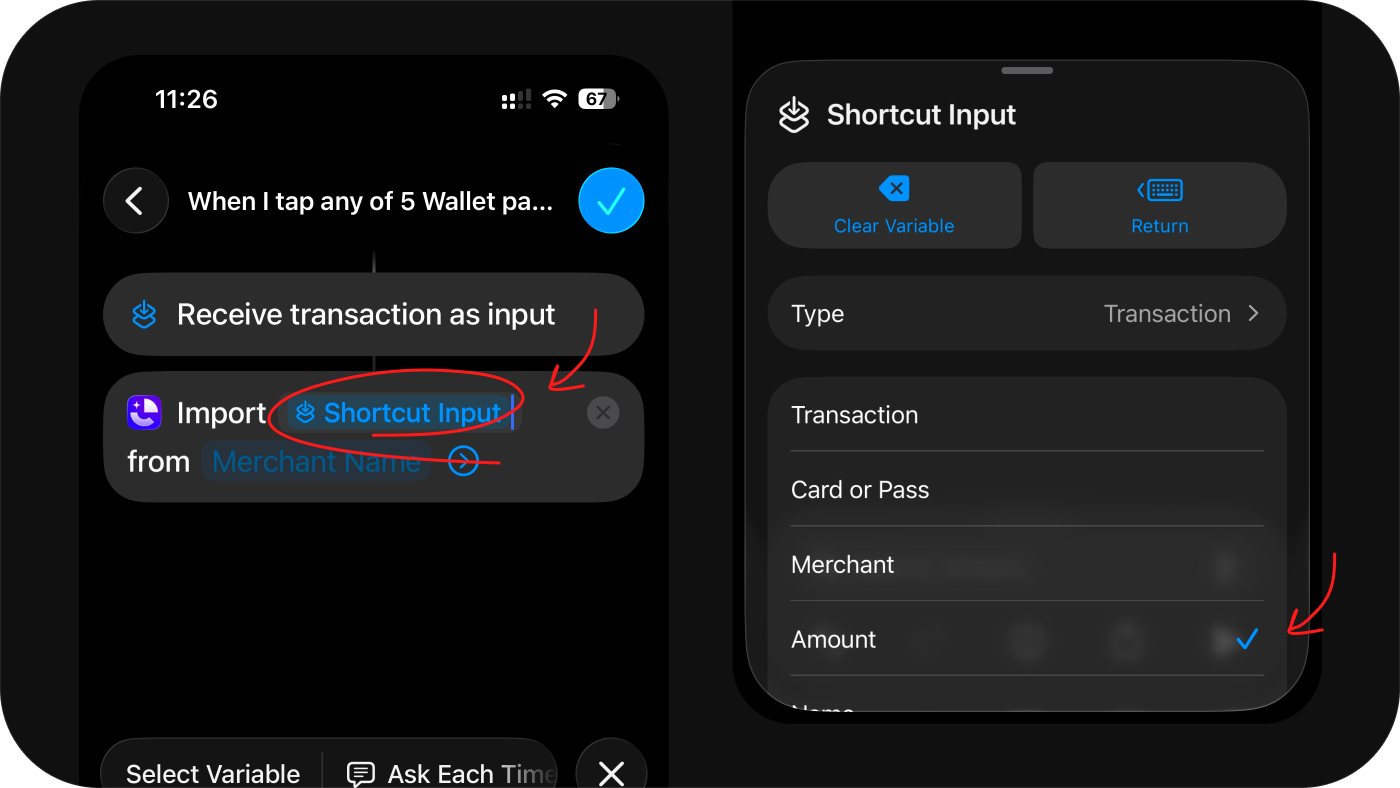
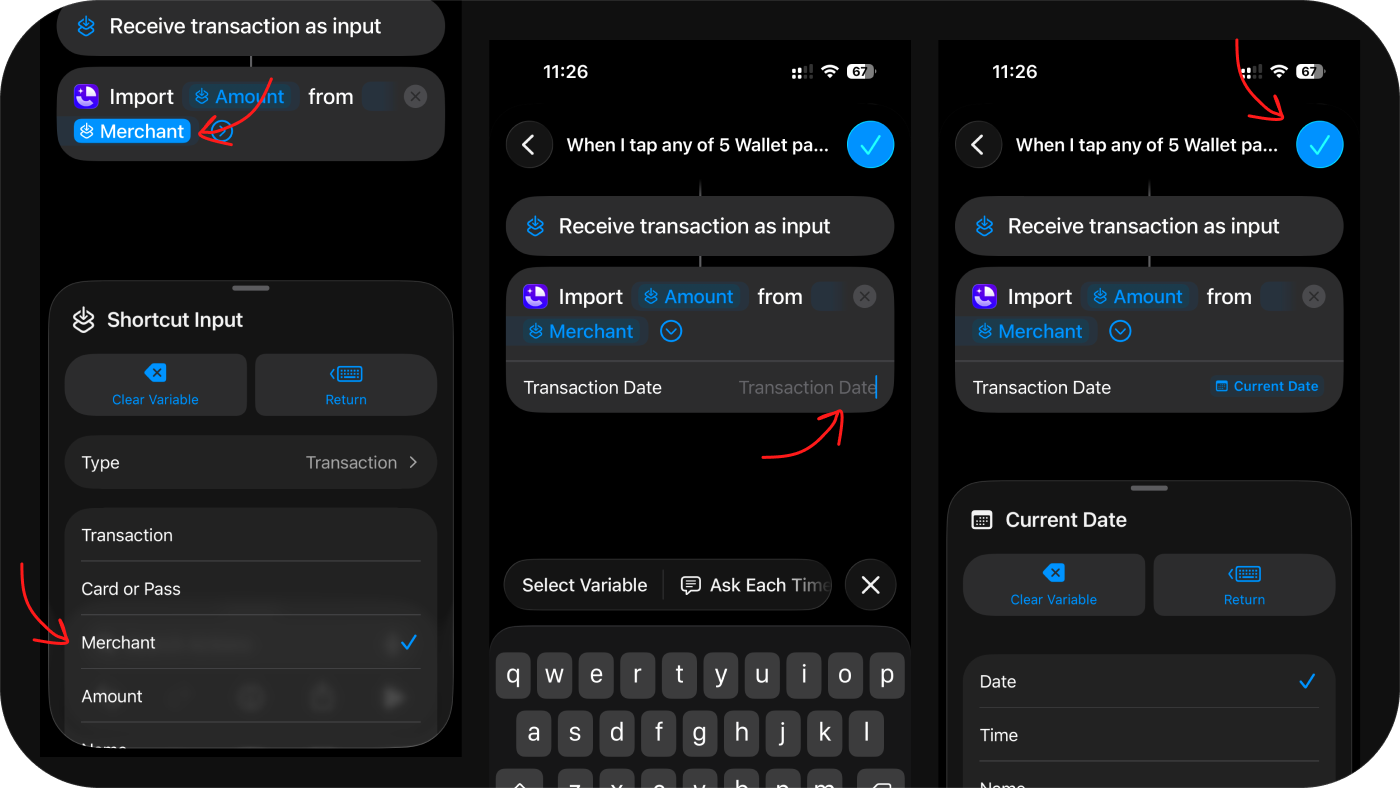
Step 7: Map the transaction fields
Connect the Apple Pay data to the destination fields. For each field, tap it → Variable → Shortcut Input → match:
- Transaction Amount → Amount
- Merchant Name → Merchant Name
- Transaction Date → Date (optional)
Step 8: Tap “Done” to save
Your automation is live. From now on, every Apple Pay payment silently logs itself — amount, merchant, date — with no action from you, on every card you selected.
Expensa for iPhone Track spending automatically Receipt scanning, budgets, Apple Pay sync — free on the App Store. Get the app
What about purchases that aren’t Apple Pay?
The Wallet trigger only fires when iOS completes the payment. It doesn’t fire for online card-number entry, chip/swipe at terminals that don’t take contactless, cash, or merchant-direct subscriptions. For those: scan the receipt or statement in Expensa, or import a monthly CSV from your bank.
If you specifically left Mint because of Plaid, this Apple Pay automation plus CSV imports is the full replacement on iPhone — longer walkthrough here.
Troubleshooting
The automation asks for confirmation every time — open the automation, three-dot menu, set to “Run Immediately”.
Transactions aren’t appearing — check the destination action has all three fields mapped. Any field saying “No Variable” needs reassigning.
I can’t find the “Tap to Pay Automation” action — install Expensa and open it at least once. iOS needs to register the app’s actions in Shortcuts.
Online card payments aren’t being captured — expected. The Wallet trigger only fires for in-person Apple Pay or Apple Pay on the web. Scan the email receipt or add manually.
A merchant name is wrong or generic — Apple-Maps-derived name from Wallet. Rename it once in Expensa; the rename applies to every future transaction from that source.
I want Apple Card transactions in the same place too — Apple Card itself uses Apple Pay, so the Wallet trigger captures Apple Card taps just like any other card. For Apple Card online purchases that didn’t use Apple Pay, pull the monthly CSV from Wallet → Apple Card → Statements and import it.
Stop tracking.
Start knowing.
Receipts scan themselves. Budgets update in real time. Apple Pay transactions log the moment you tap.
Download for iPhone