How to automatically add Apple Pay transactions to Expensa using Shortcuts?
Every time you tap to pay with Apple Pay, Expensa can log it automatically — merchant name, amount, date — without you touching your phone. The trick is a one-time automation in the iOS Shortcuts app. Here’s exactly how to do it.
What you’ll need
- iPhone with Apple Pay configured
- Expensa installed
- Shortcuts app (built into iOS — no download needed)
The whole setup takes about 2 minutes.
Step 1: Open the Shortcuts app
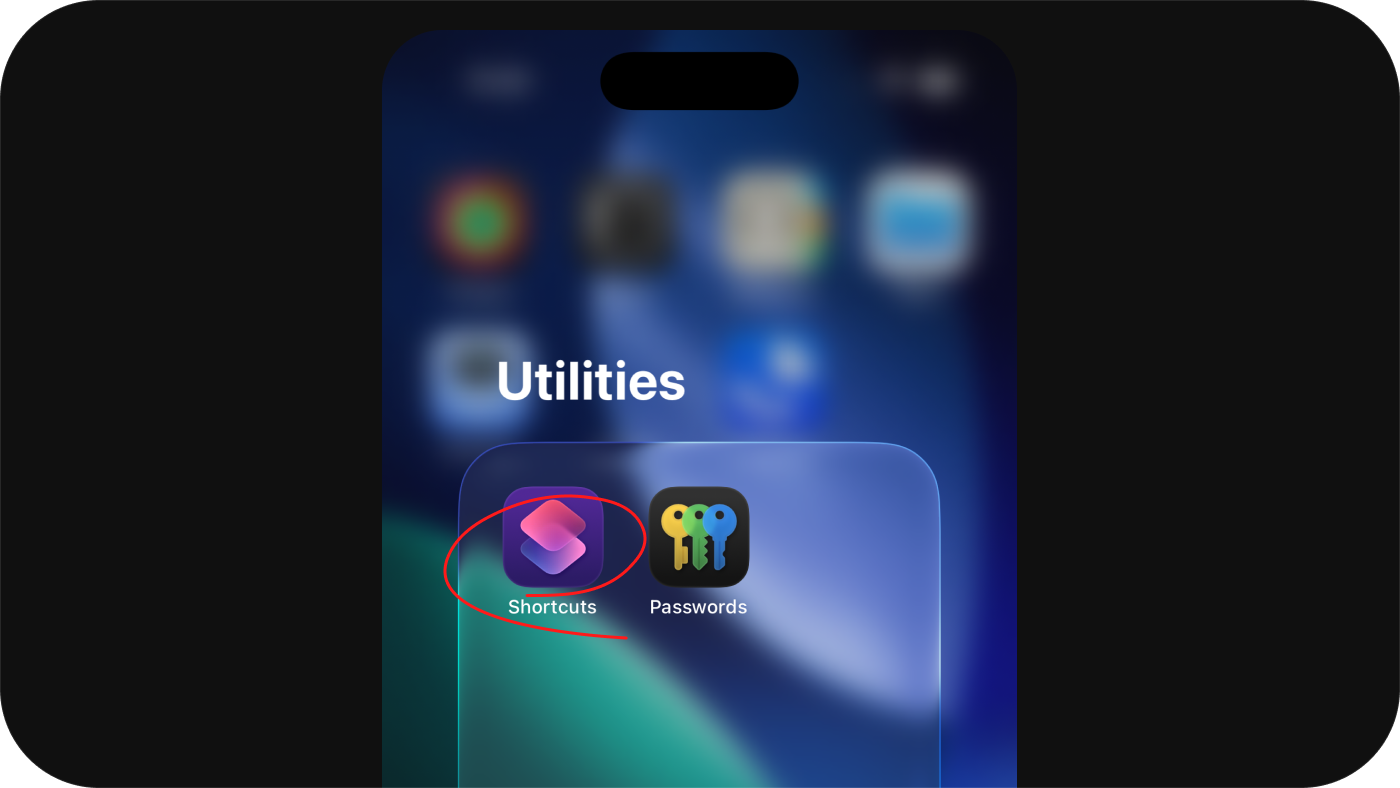
Find the Shortcuts app on your iPhone and open it. It comes pre-installed on every iPhone running iOS 13 or later — if you’ve never opened it, it’s probably in the Utilities folder.
Step 2: Go to the Automation tab and tap “New Automation”
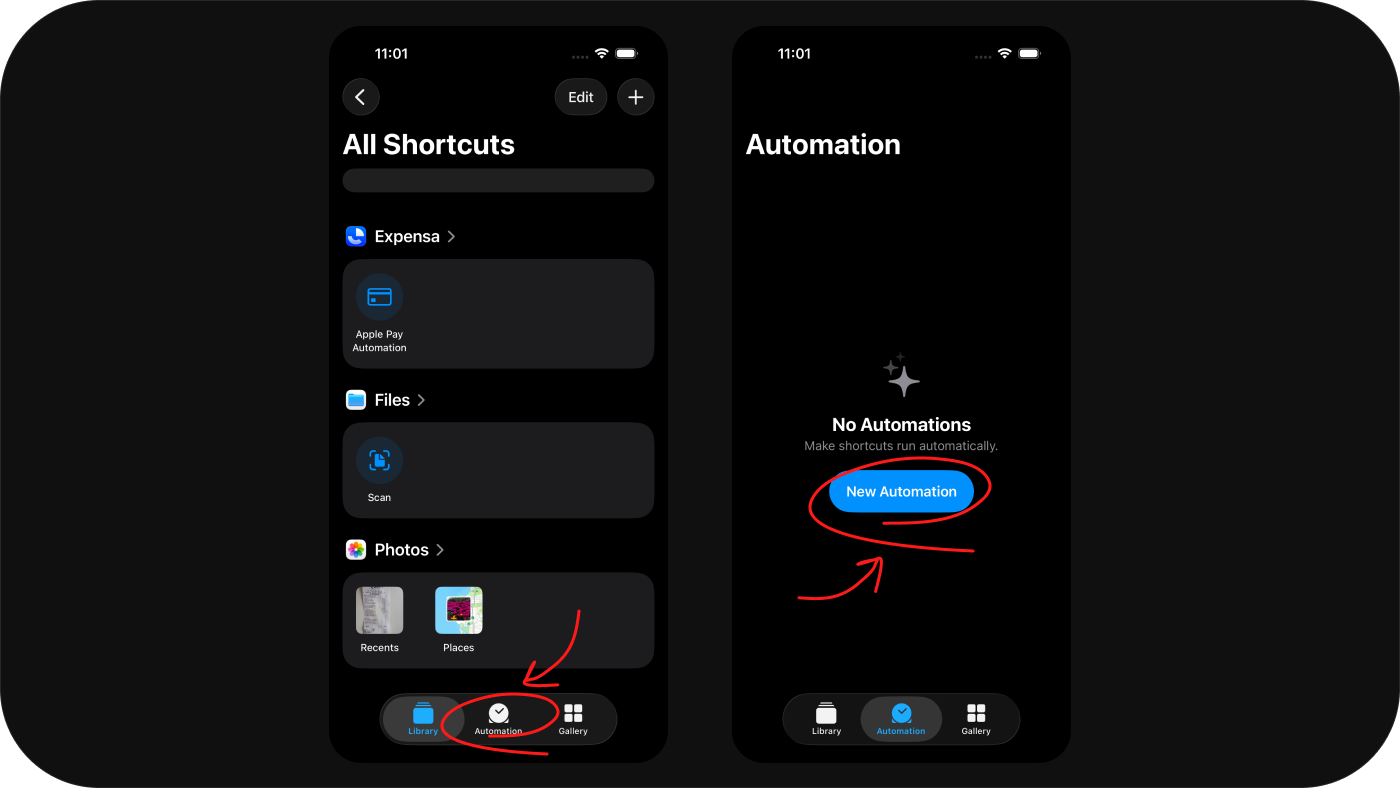
At the bottom of the screen, tap the Automation tab. Then tap the New Automation button to create a new automation.
Step 3: Select “Wallet”
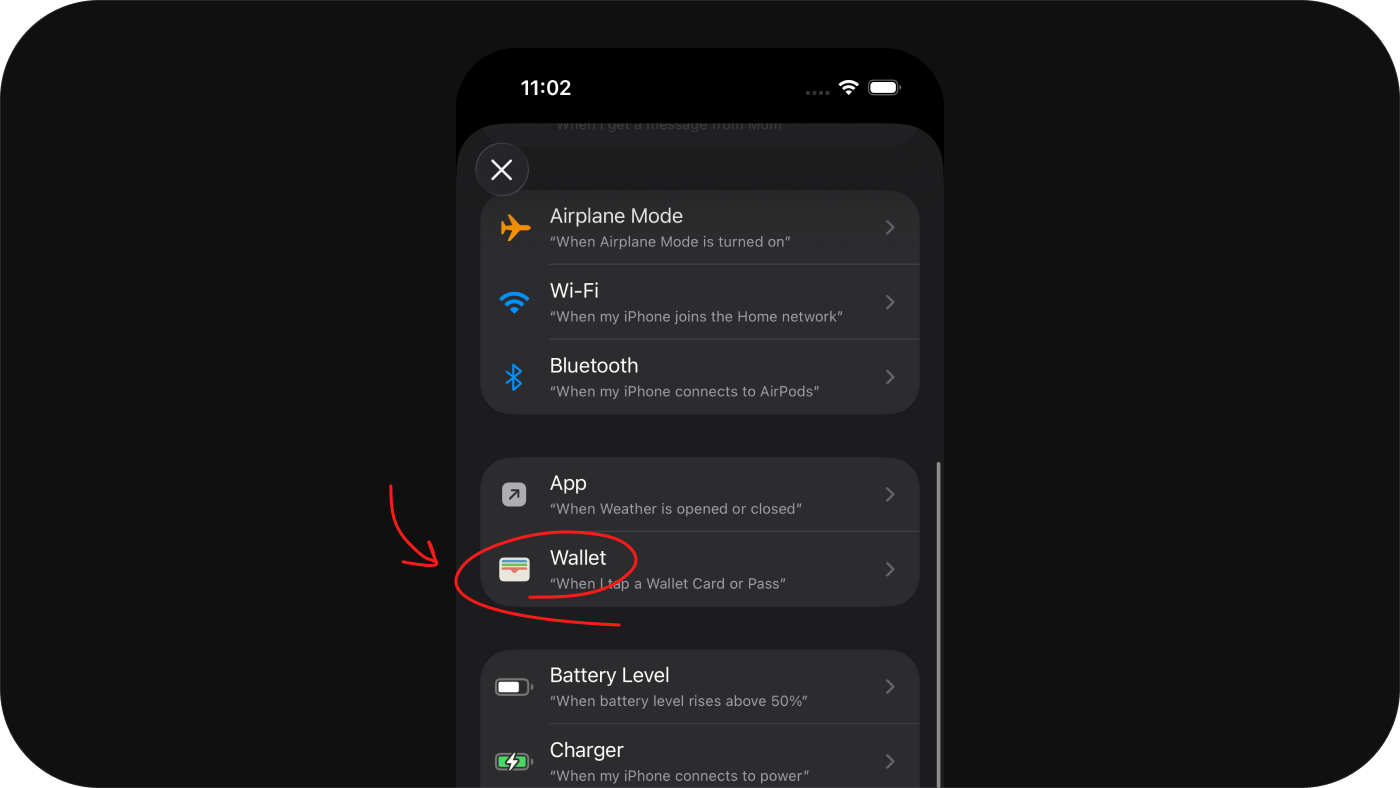
Scroll down to find Wallet — specifically the trigger “When I tap a Wallet Card or Pass”. This fires the automation every time you use Apple Pay.
Step 4: Select your cards and set to Run Immediately
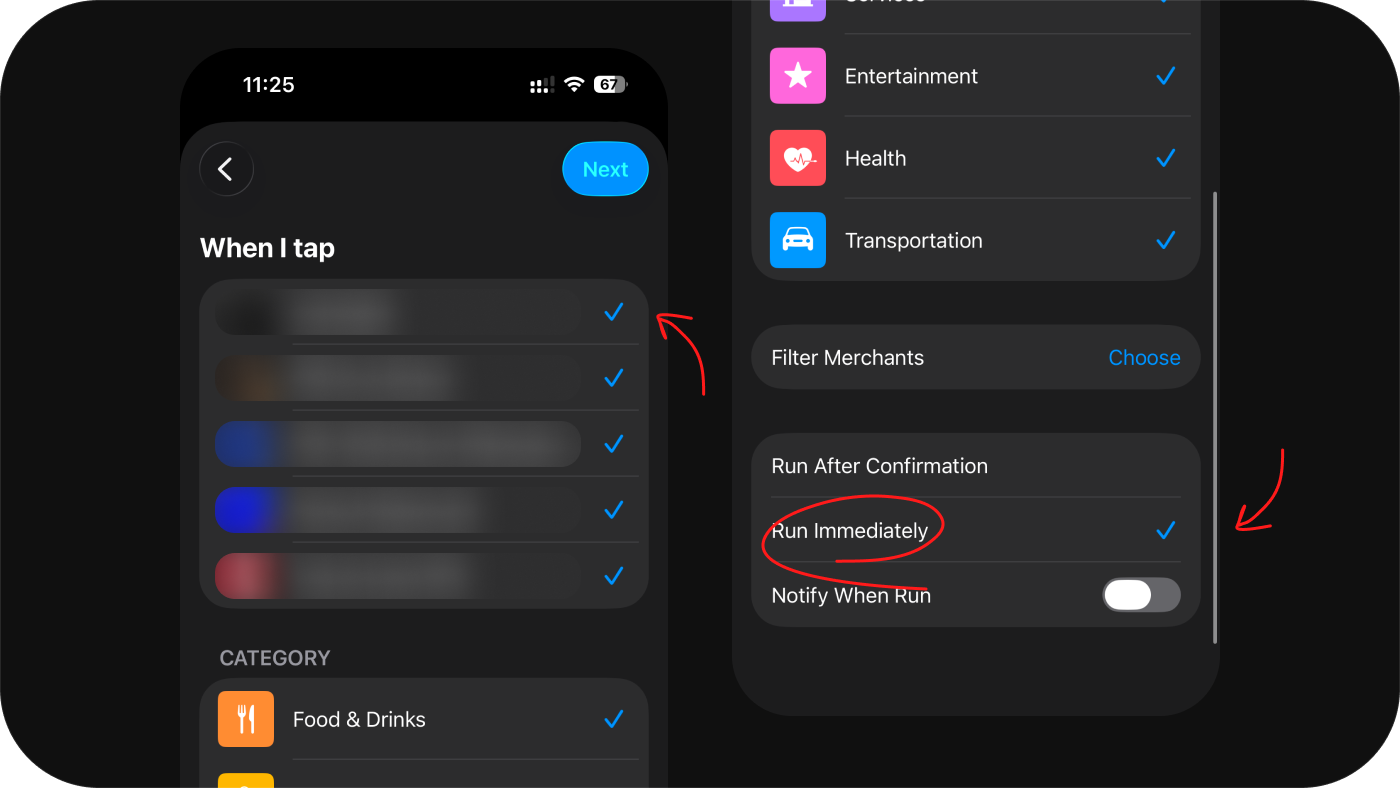
When you tap, select the cards you want the automation to work with. Then change the run mode to Run Immediately. This is important — if it’s set to “Run After Confirmation”, Shortcuts will ask for your approval every single time you pay, which defeats the whole point. With “Run Immediately” selected, the automation runs silently in the background.
Step 5: Tap “Create New Shortcut”
When prompted to choose what the automation does, tap Create New Shortcut. This opens the action editor where you’ll add the Expensa action.
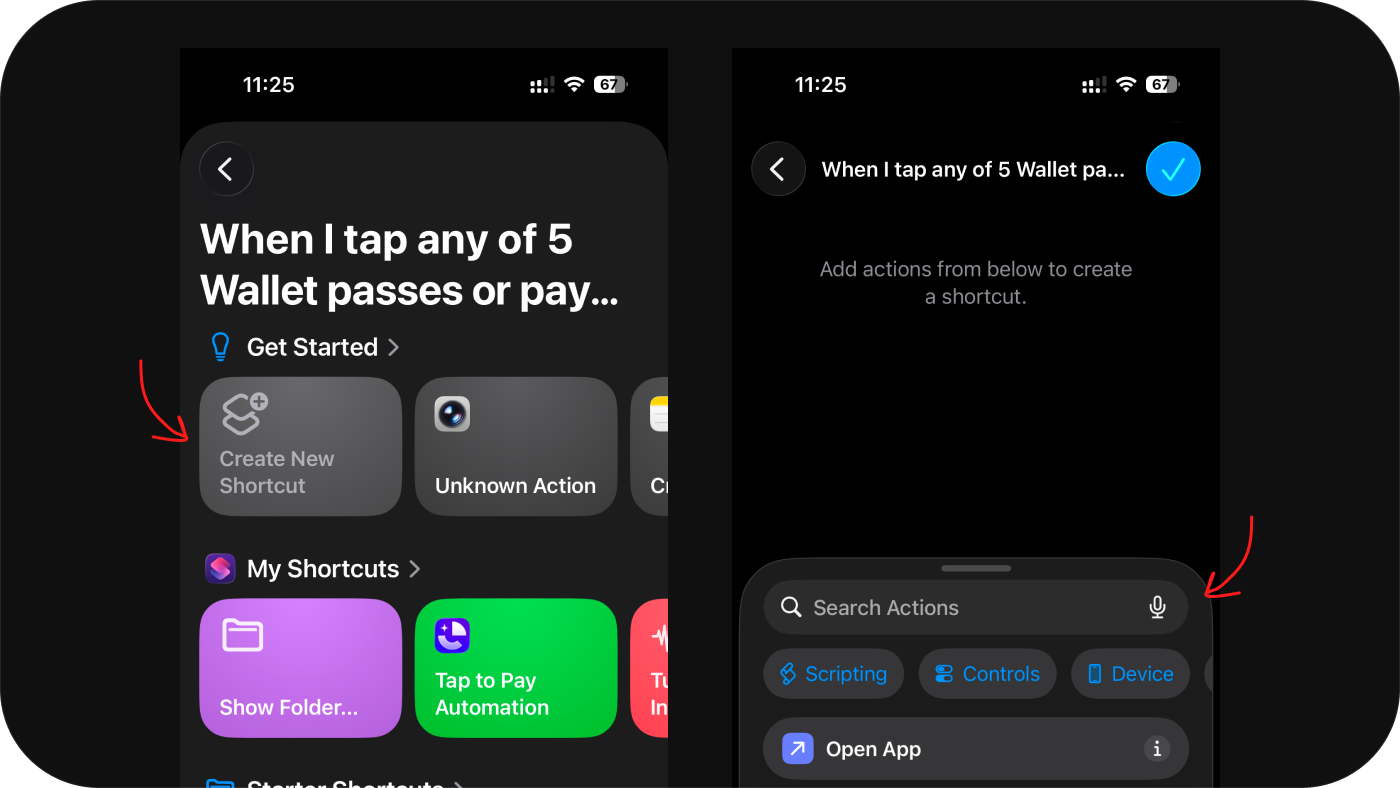
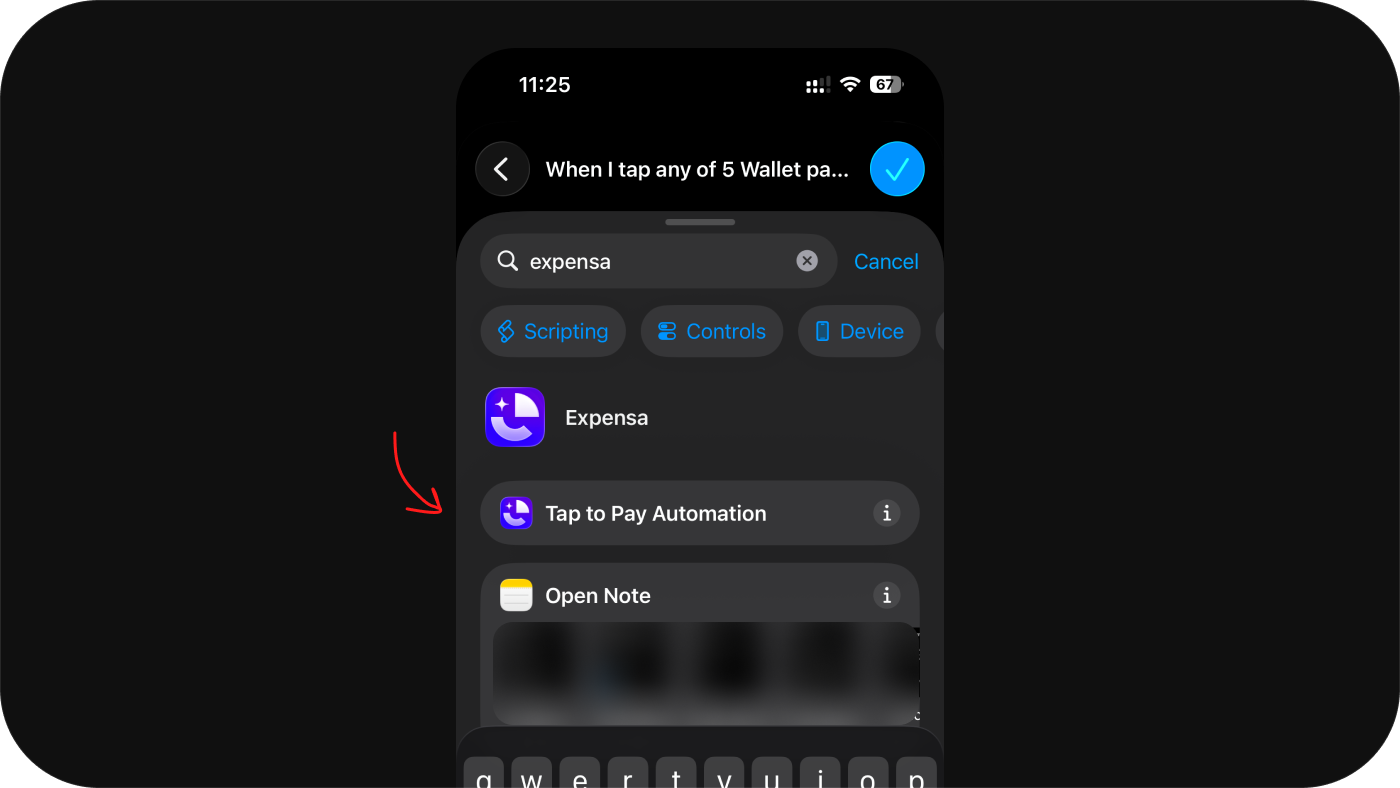
Step 6: Search for and add the Expensa action
In the search bar, type Expensa or Tap to Pay Automation and select it from the results. This is the Expensa action that receives the transaction data.
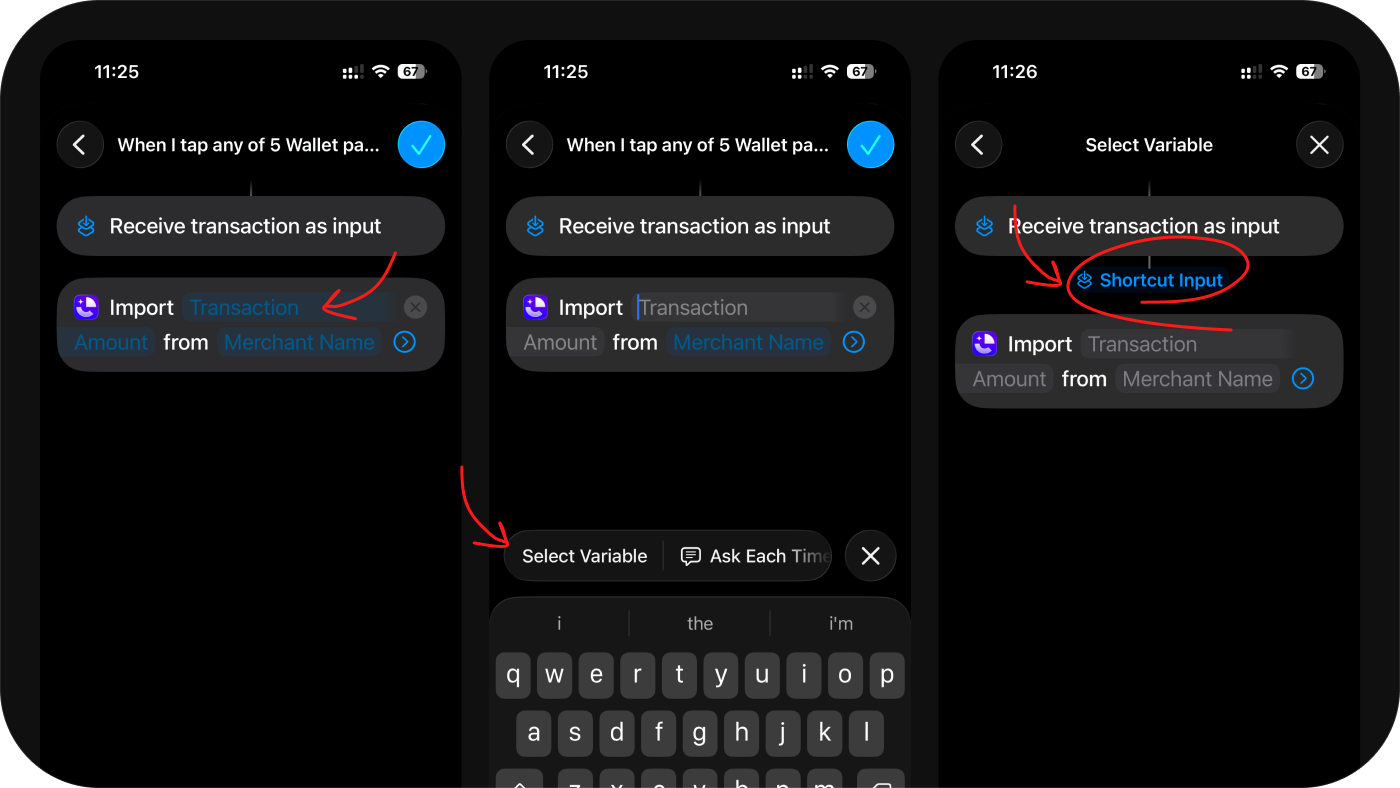
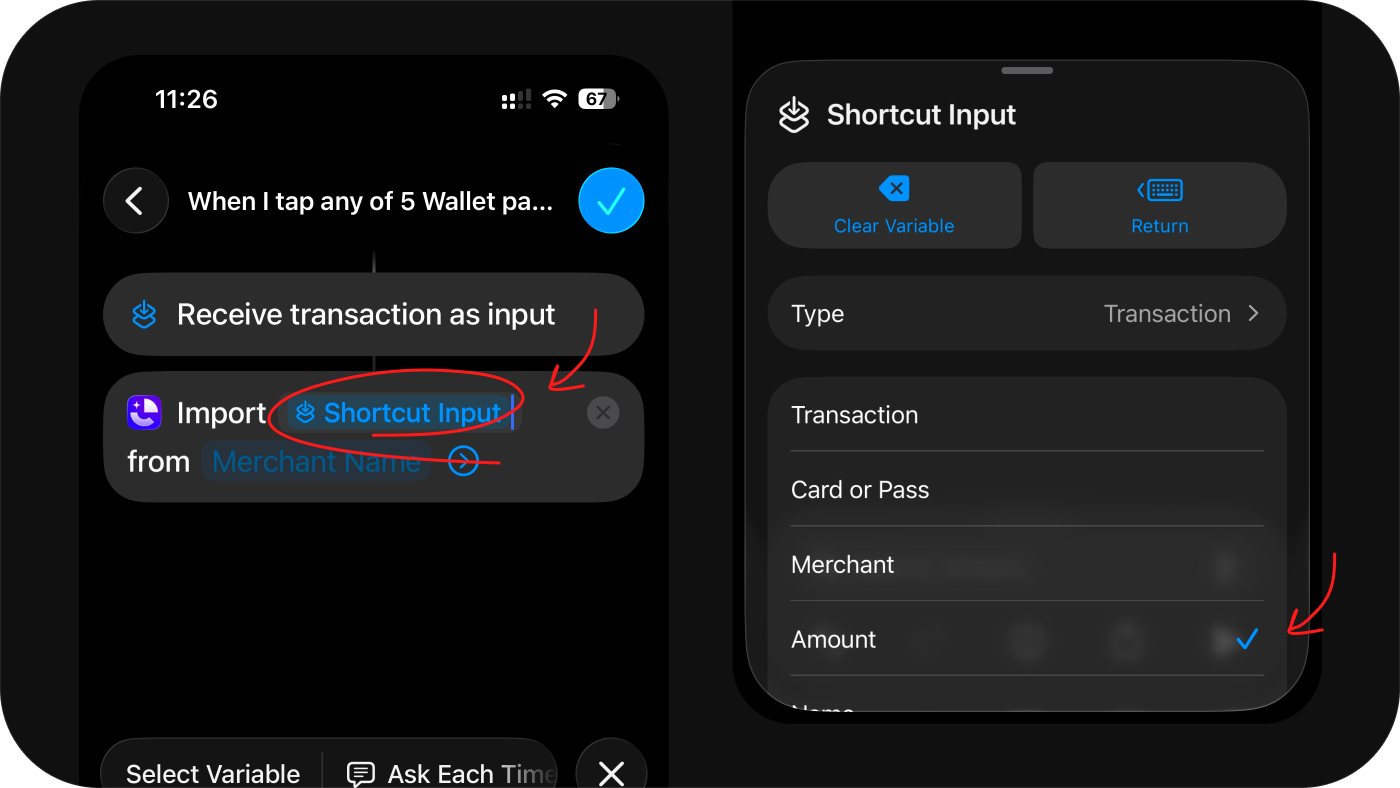
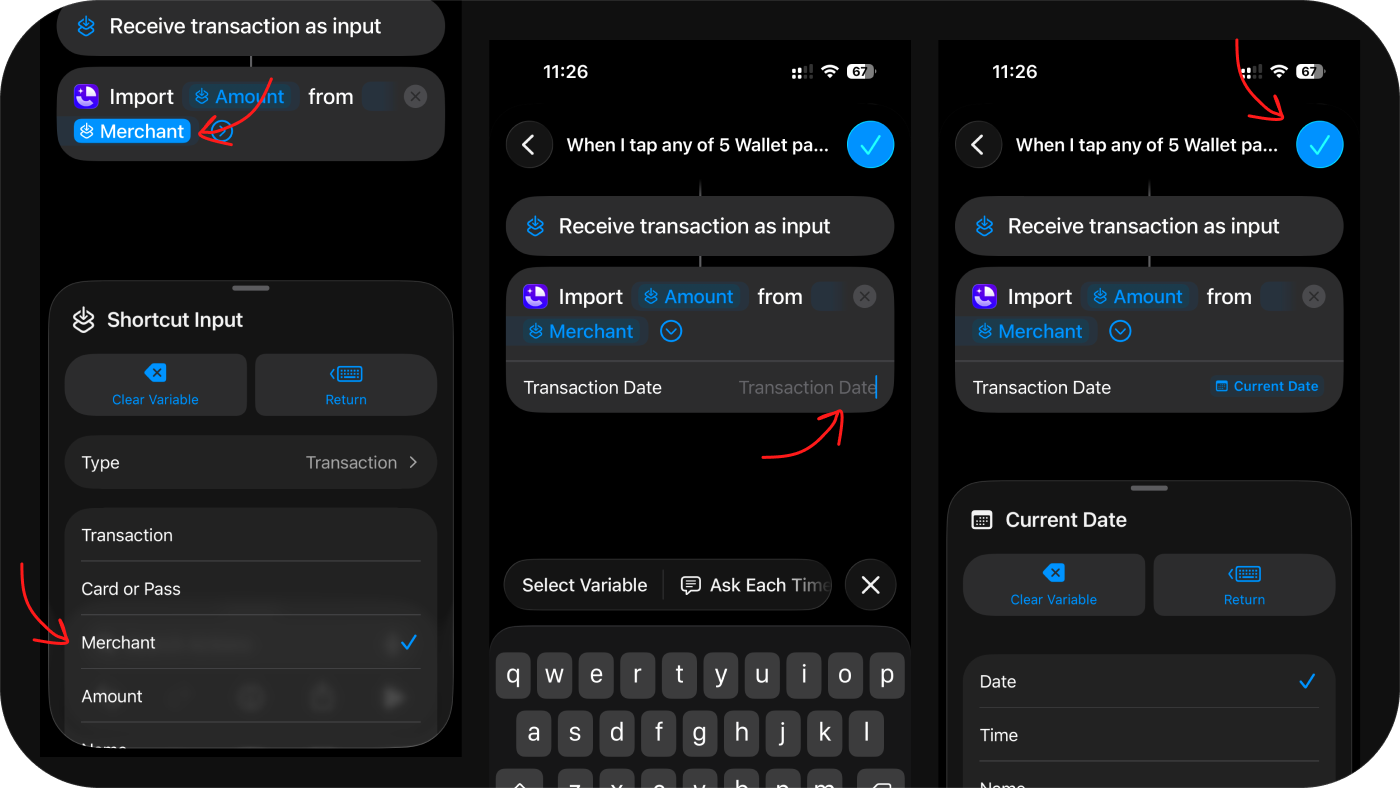
Step 7: Map the transaction fields
Now connect the Apple Pay data to the Expensa fields. For each field in the action, tap it → select Variable → then Shortcut Input, and choose the matching field:
- Transaction Amount → Amount
- Merchant Name → Merchant Name
- Transaction Date → Date (optional)
Step 8: Tap “Done” to save
Tap Done in the top-right corner. Your automation is live.
From this point on, every Apple Pay payment will silently log itself to Expensa — amount, merchant, and date — with no action needed from you.
Expensa for iPhone Track spending automatically Receipt scanning, budgets, Apple Pay sync — free on the App Store. Get the app
Choosing which space transactions go to
By default, Apple Pay transactions import into your current active space. You can change this in Expensa under Settings → Apple Pay Sync — pick any space you want imported transactions saved to, such as a dedicated “Card” or “Daily” space.
Troubleshooting
The automation asks for confirmation every time — go back into the automation, tap the three-dot menu, and make sure the run mode is set to “Run Immediately”.
Transactions aren’t appearing — check that the Expensa action is the one with all three fields mapped. If any field says “No Variable”, tap it and reassign it.
I can’t find the “Tap to Pay Automation” action — make sure Expensa is installed and open it at least once before searching. iOS needs to register the app’s actions in Shortcuts.
Stop tracking.
Start knowing.
Receipts scan themselves. Budgets update in real time. Apple Pay transactions log the moment you tap.
Download for iPhone